Getting started with Kernel Modules
Description
This is an intro to modern Linux kernel module programming as opposed to compiling an entire kernel. We will present the preliminary knowledge needed and the basic setup. You will learn how to identify your kernel version, be presented a starter code template, learn how to compile, and how to load your module.
Audience
You have basic C programming skills and are familiar with the Linux kernel.
Warning
Linux operating systems are secure by design. They are designed with a layer of separation between the software that needs direct access to hardware that is the Linux Kernel and all other software that is referred to "user" software. The kernel has it's own space on memory and cpu and user programs have their own space; kernel space is safely separated from user space. So with kernel programming you are directly operating on hardware and so you do not have that safety buffer layer of separation.
"A single wild pointer can wipe out your file system."
"A core dump means a reboot"
REF paragraph 1: tldp.org/LDP/lkmpg/2.6/html/x40.html
Identify your system and kernel versions
$ cat /etc/os-release
Debian GNU/Linux 12 (bookworm)
We are running the Debian 12 codenamed Bookworm which is the current stable version of Debian as of the date of this article Jan 2025; debian.org/releases.
$ uname -r
6.1.0-28-amd64
We are running Linux version 6.1. The most recent Linux version at kernel.org is 6.13 btw.
Install necessary tools
We will need the kernel headers to compile kernel modules.
$ apt search linux headers 6.1.0-28-amd64
linux-headers-6.1.0-28-amd64
Install it.
# apt install linux-headers-6.1.0-28-amd64
The following additional packages will be installed:
linux-compiler-gcc-12-x86
linux-headers-6.1.0-28-common
linux-kbuild-6.1
linux-libc-dev
Ahh, so kernels requires their own special gcc compiler and a special build tool called Kbuild.
Kernel Module Formatting Template
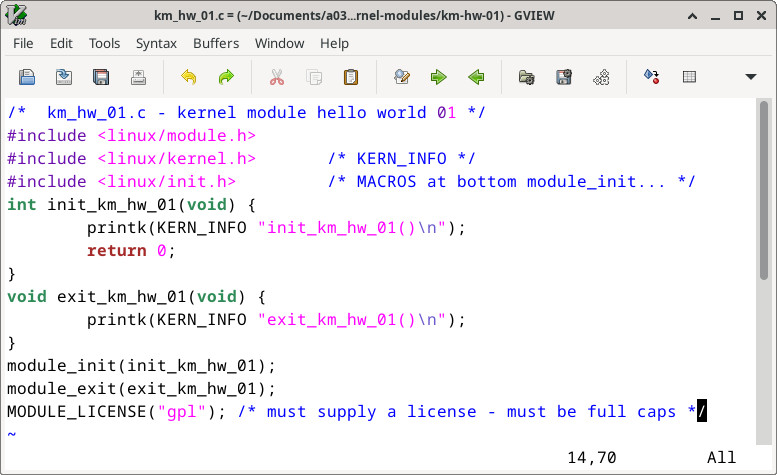
Here is the template for programming a kernel module. It just prints using printk which is a the kernel print function. It is just 14 lines.
REF tldp.org/LDP/lkmpg/2.6/html/hello2.html
File link: ./km-hw-01/km_hw_01.c
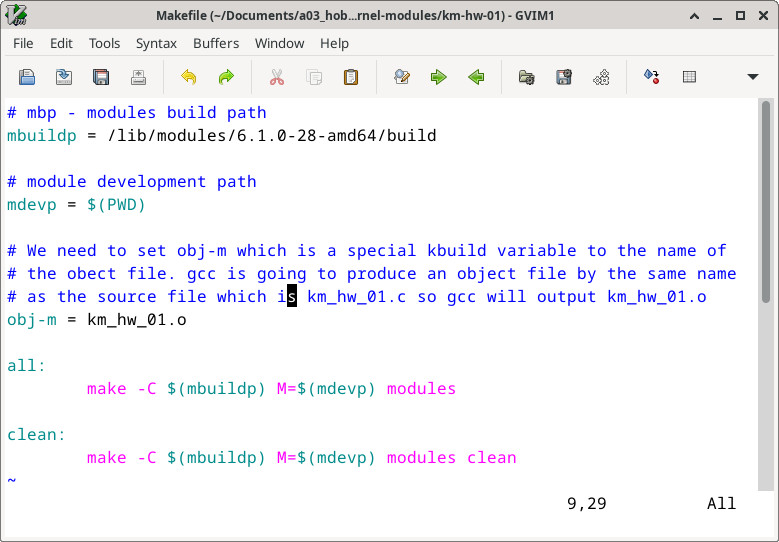
Makefile for above Module
Kernel modules are built using a special build tool called Kbuild. A special Makefile variable is availabe in make's extended syntax for building using Kbuild namely "obj-m". This variable sets the ".o" object file that is passed to Kbuild. Usually we call "gcc" in our Makefile but with kernel modules we call "make" in our Makefile. When we call make in our Makefile, we need to cd(change directory) into the Linux source tree build directory using the "-C". Next we need to assign our development module's path to the special Makefile variable "M=". Finally we must supply the keyword option "module".
REF tldp.org/LDP/lkmpg/2.6/html/x181.html
REF oreilly.com/library/view/linux-device-drivers/0596005903/ch02.html
File link: ./km-hw-01/Makefile
make kbuild it
As mentioned about, our Makefile has set the "M=" assignment to "$(PWD)" and so we must run make from the directory or our module program
$ ls
km_hw_01.c Makefile
$ make
make[1] ; CC [M] ; MODPOST ; CC [M] ; LD [M] ; BTF [M]
Skipping BTF generation
A number of files have been generated. We will load the ".ko" file. We can ignore that last warning regarding BTF.
Loading/Inserting into Kernel
# insmod km_hw_01.ko
If insmod returned without error we are good to go.
Viewing our Running Module
We can see our Kernel module running on our Linux system using lsmod.
# lsmod | grep km_hw_01
km_hw_01 16384 0
We can do the same as above by viewing the /proc/modules file; lsmod reads from it.
# cat /proc/modules | grep km_hw_01
km_hw_01 16384 0
Removing/unloaded the Module
# rmmod km_hw_01
Since km_hw_01 is loaded into the Kernel it is listed in the /proc/modules file and we can call rmmod from any path location where as we needed to be in the module development directory where the ".ko" file is located to insert it into the Kernel.
Viewing the printk()'s
Recall our module did not do anything except call the kernel print function printk(). In the recent past, Kernel logs used to be viewable at /var/log/messages. Since the Debian Bookwork update we now use journalctl.
REF debian.org/releases/bookworm/amd64/release-notes/ch-information.en.html#changes-to-system-logging
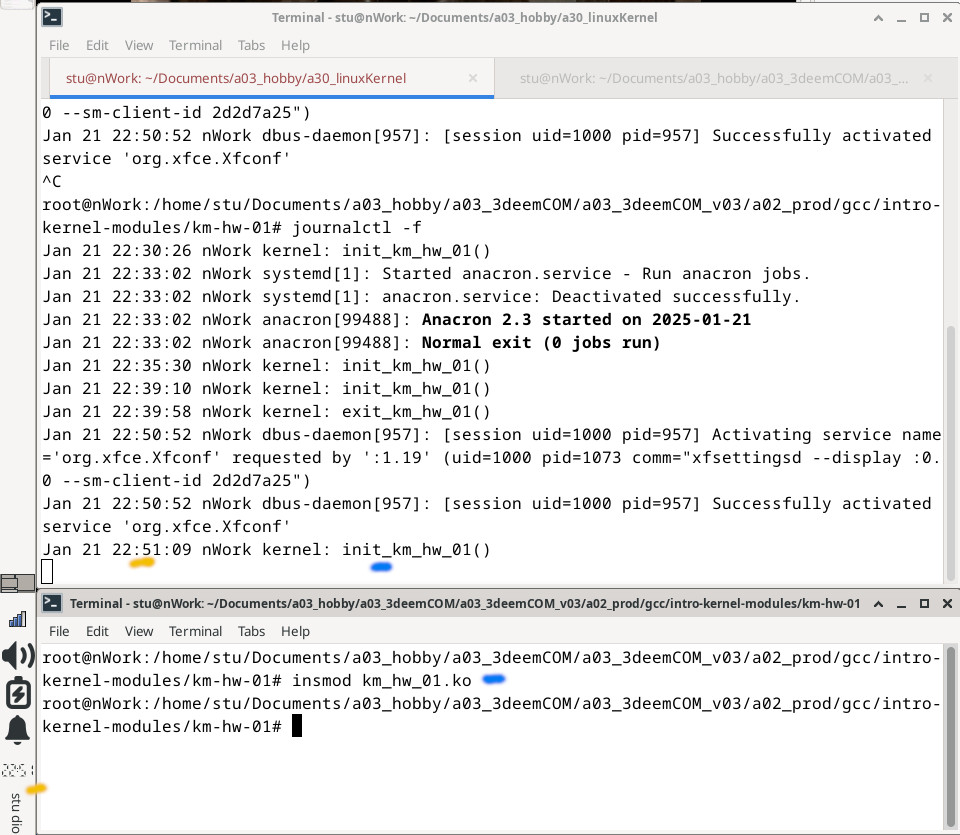
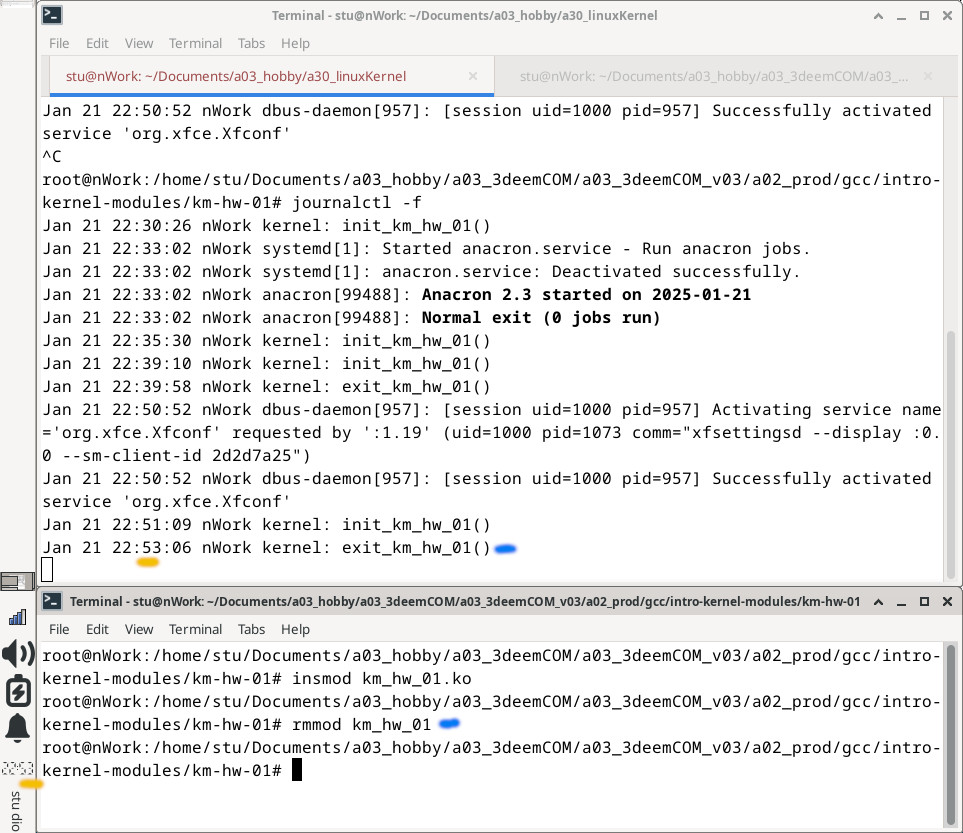
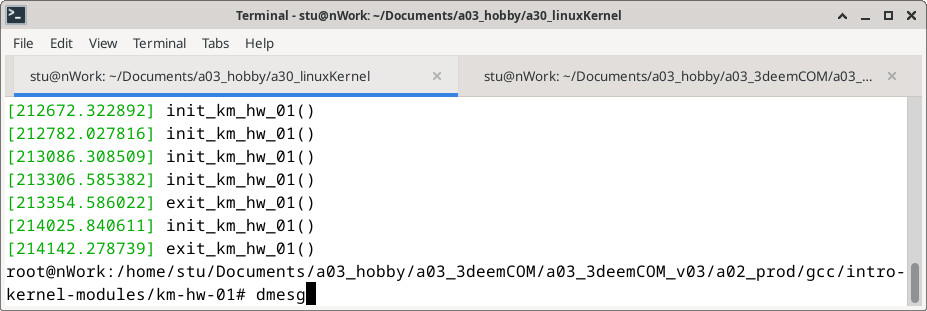
It is a long print out; pages upon pages going back for days. We can jump to the end using the "-e" option. Or we can us the "-f" option to see Kernel logs as they print out. So when you insmod, you should see the init print out, and when we rmmod the exit printout. You can also use dmesg.
insmod
rmmod
dmesg
Final Notes
Notice repeated init_km_hw_01() print outs in the above dmesg screenshot. Linux allows us to repeatedly load the same module. It does not return error such as "a module by the same name is already loaded" or similar. Also notice, if you were to run lsmod or cat /proc/modules you would see that only one init_km_hw_01() is loaded.
For a more detailed explanation of kbuild for building an out-of-tree kernel module see the following reference: kernel.org/doc/Documentation/kbuild/modules.txt